
Agreements & payouts
See your Square residuals and set up payouts
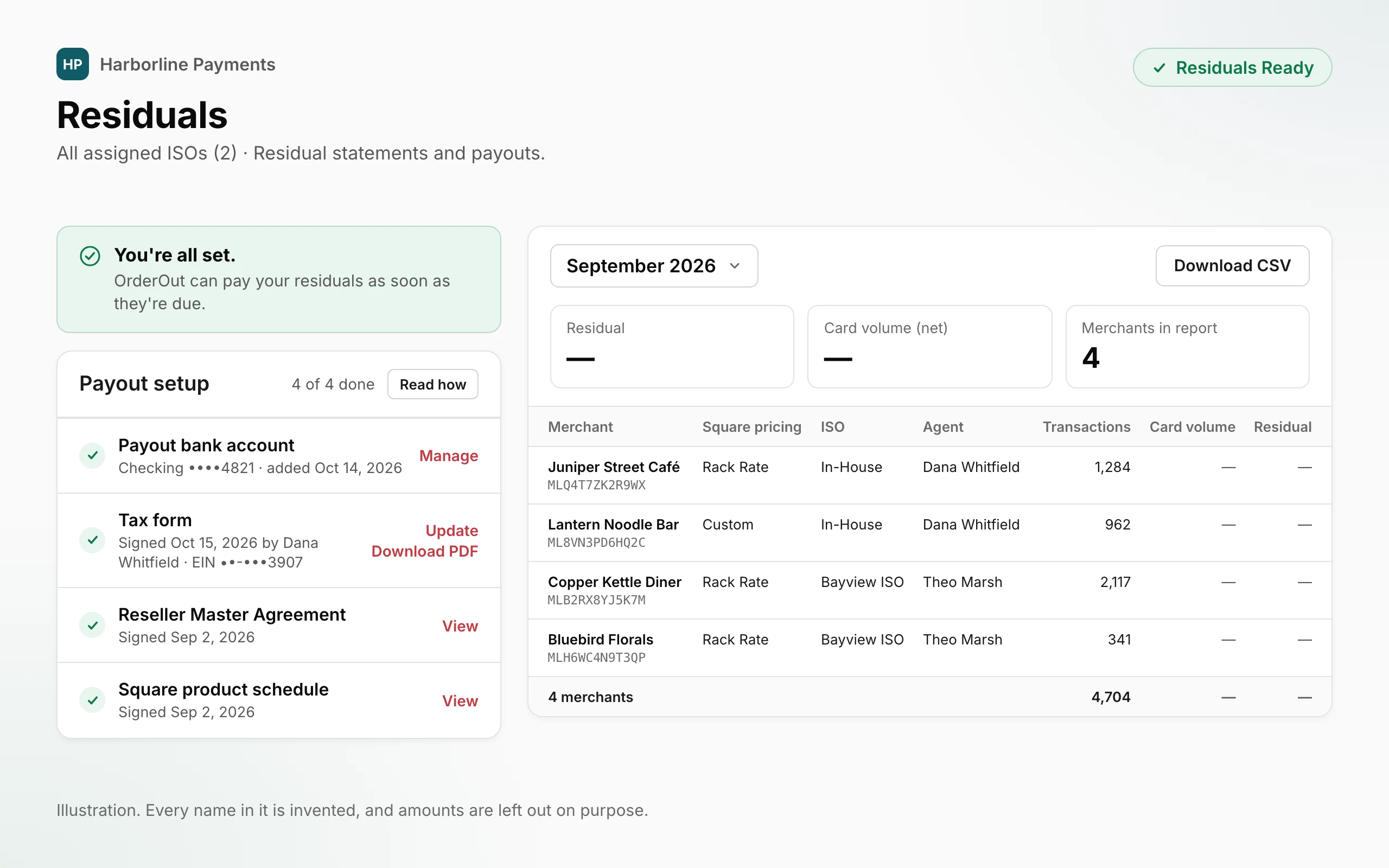
The Residuals page now shows each month of your Square residuals, merchant by merchant, and a short checklist gets you ready to be paid.
 Open full size
- Your Square residuals, month by month. Pick a month to see the residual Square reported for each merchant, with its Square pricing, ISO, agent, transactions and card volume. The top of the month shows the Residual, the Card volume (net) and the Merchants in report.
- Only the merchants in your scope. You see the merchants inside your own scope as an ISO, sub-ISO or agent, by the same rules as your Merchants page. A past month keeps the ISO and agent it was recorded with.
- Download the month as a CSV. Download CSV saves the month you're looking at, so you can work with it in a spreadsheet.
- A Payout setup checklist. An organization-wide admin sees a Payout setup checklist: your payout bank account, your tax form (a W-9 you fill in and sign online), the Reseller Master Agreement and the product schedule for each product your residuals come from. When every step is done, the page shows Residuals Ready.
- An email if a step comes undone. Once your organization is Residuals Ready and has residuals, its organization-wide admins get an email if a step later comes undone, listing what to fix.
- Paid around the 25th. OrderOut pays you around the 25th of each month for the previous month's processing.
Where to find itPortal → Residuals, for members allowed to see merchant revenue and residuals. Everyone who sees the page sees whether your organization is Residuals Ready; an organization-wide admin finishes payout setup. Nothing to switch on.
What this does not do yet
- Only an organization-wide admin can finish payout setup. Everyone else who can open the Residuals page sees whether the organization is Residuals Ready and can ask an organization-wide admin to finish it.
- A month appears only after OrderOut has loaded Square's report for it.
- Each residual is the merchant's full residual as Square reported it. The portal doesn't calculate anyone's split or track payments.
- The tax form in the portal is the W-9. A business registered for tax outside the US uses a W-8 instead: email reseller@orderout.co and we'll send it.
- Changing your legal name, taxpayer ID or classification means signing the W-9 again before you're Residuals Ready. Changing only your address keeps your current W-9.
- Payout setup takes a US bank account. For a bank in another country, email the OrderOut reseller team.
Open Residuals Read how to set up payouts
All releases·All help guides·reseller@orderout.co
New to OrderOut? Request access — or read what the reseller program involves.