
See your merchants' volume in the OrderOut Reseller Portal
Your merchants' Square volume shows on the OrderOut Reseller Portal Dashboard.
Steps
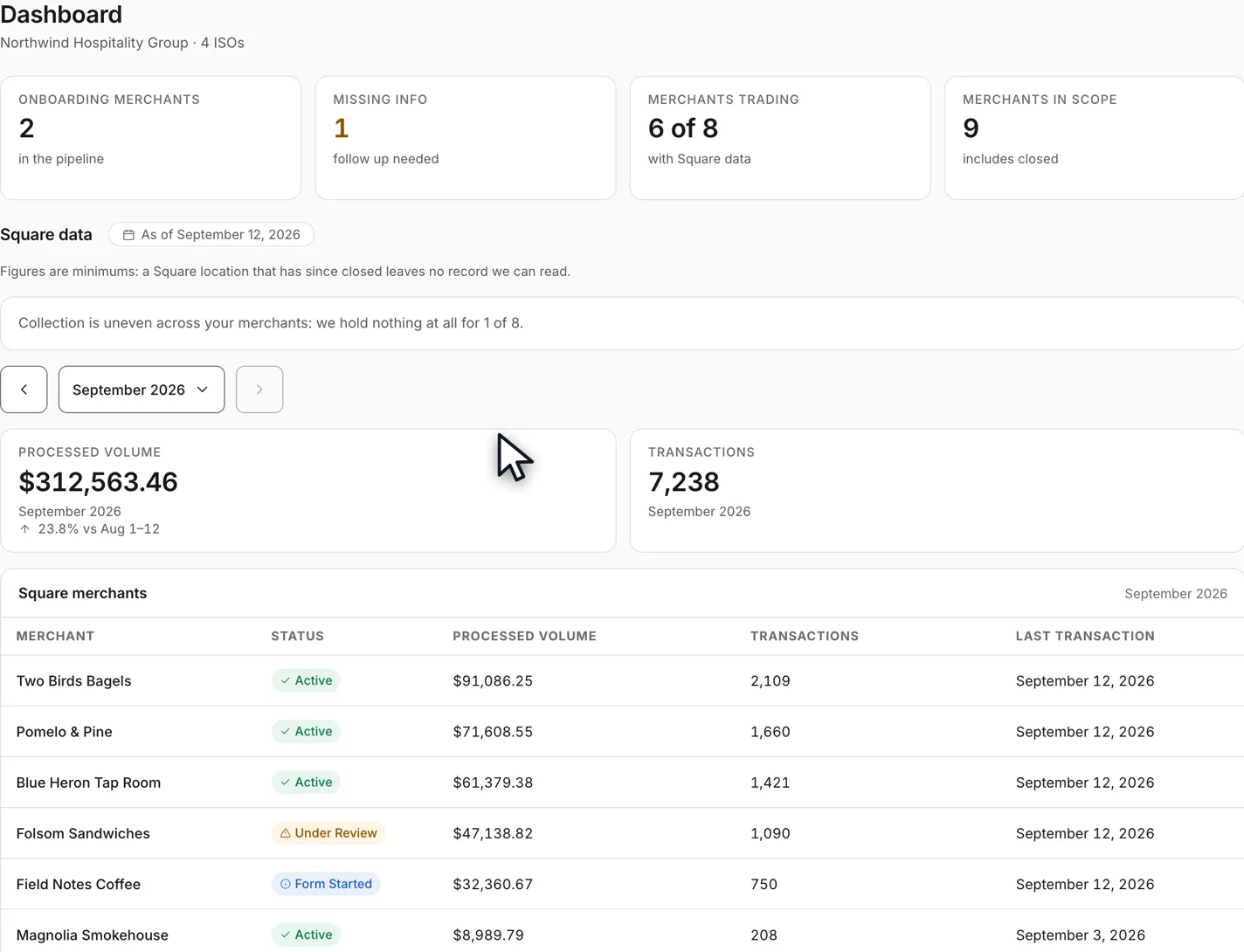
- Open the Dashboard. Four counts run across the top — Onboarding merchants, Missing info, Merchants trading, and Merchants in scope. The last of them is the boundary every figure below it respects.Open full size ↗
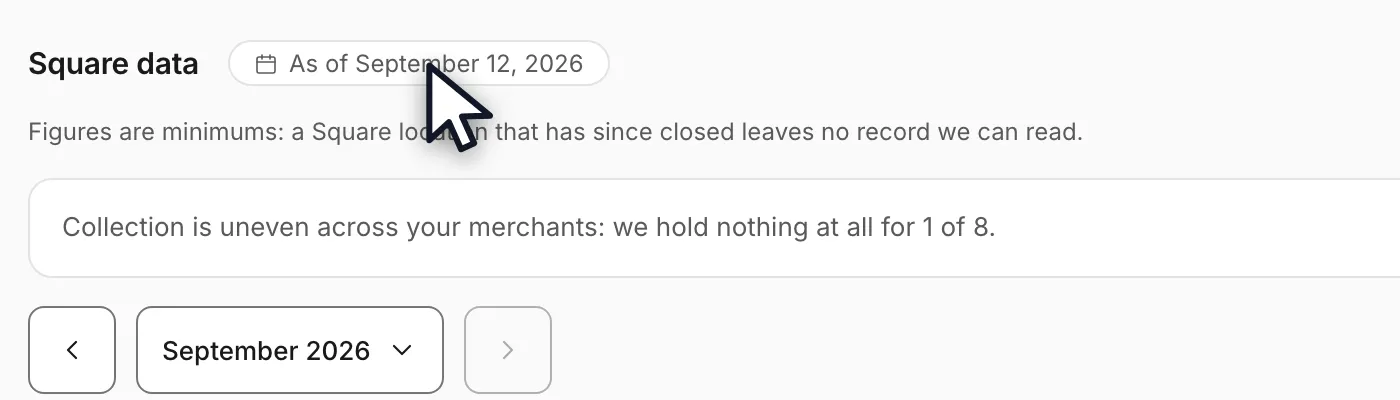
- Go to the Square data section. The chip beside the heading names the latest day we collected anything for a merchant in your scope — it is a fact about one date, not a claim that everything is collected that far.Open full size ↗
- Read the two tiles: Processed volume and Transactions. Each carries the change against the same stretch of the previous month, so a part-finished month is never compared against a whole one.Open full size ↗

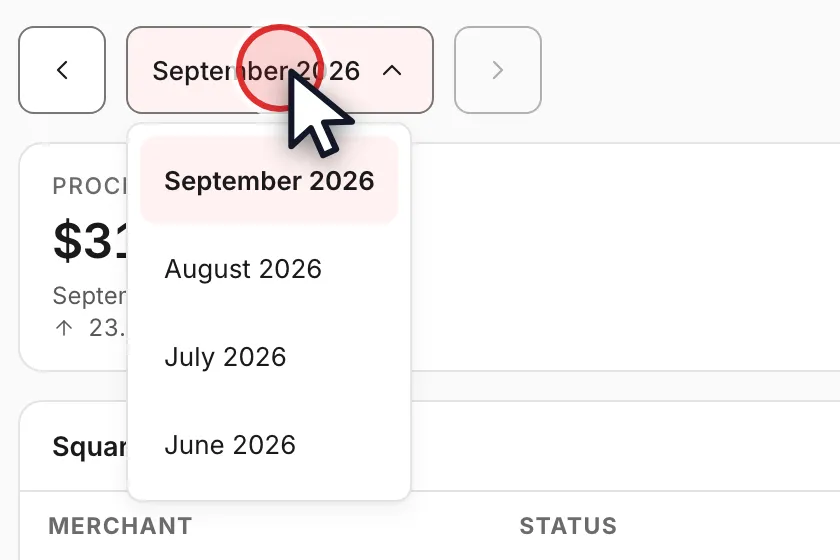
- Use the month bar above the tiles to change month. It lists every month we hold data for, newest at the top, and choosing one moves the tiles and the merchant table together.Open full size ↗
- Treat every figure as a minimum. Square publishes no way to enumerate a location that has since closed, so a month can only ever be at least what is shown — there is no setting that upgrades it to a certified total.
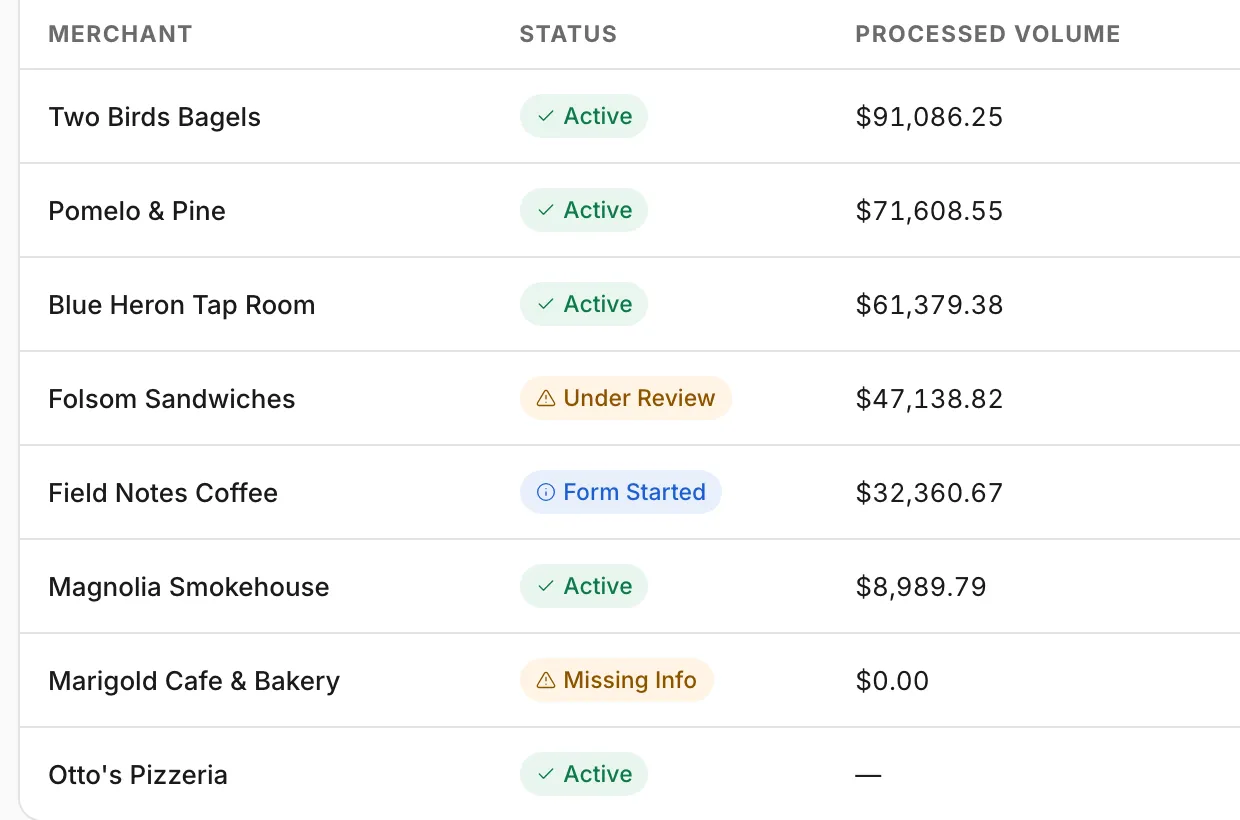
- In the merchant table, $0.00 and a dash mean different things. $0.00 is a measured zero: we read that month and the merchant took nothing. A dash means we hold no reading, which can happen to a merchant whose status is Active. If your access doesn't include financial figures, the table and tiles show a check mark, 0 or a dash instead of amounts.Open full size ↗
Worth knowing
- The Dashboard answers for the merchants in your scope and for nobody else's. If your figure differs from someone else's in the same organization on the same day, the scope is what differs — see the companion guide on reading the Dashboard at your own level.
- Processed volume is what merchants ran through Square. It is not what the business earned, and it is not your residual — fees, refunds and chargebacks are not netted off it.
In the video
Full transcript1:17
0:00What the Dashboard answers
Your merchants' Square volume shows on the OrderOut Reseller Portal Dashboard.
You'll need a portal login, and we're starting on the Dashboard.
Four counts run across the top. The last of them, Merchants in scope, is the boundary every figure below it respects.
0:18The Square data section
Under them is the Square data section. The chip beside the heading names the latest day we collected anything, so you can see how current this is.
The two tiles are Processed volume and Transactions, each carrying the change against the same stretch of the month before.
0:38Change the month
The month sits in the bar above the tiles. Open it and you get every month we hold data for, newest at the top.
Pick one, and the tiles and the merchant table below both move with it.
0:52Read the marks
Every figure here is a minimum, never a certified total. A Square location that has since closed leaves no record we can read, and the page says so rather than burying it.
In the table, a zero and a dash are different marks. Zero means we read that month and it was empty. A dash means we hold no reading at all.
Still stuck? Email reseller@orderout.co.All guides