
Give an agent portal access in the OrderOut Reseller Portal
Grant access from their agent row, with only their own applications ticked.
Steps
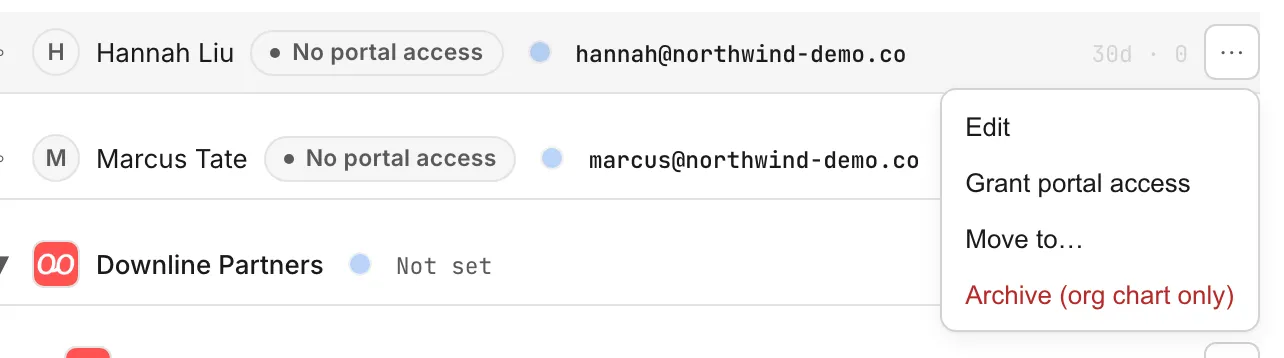
- Open ISO groups & Agents. An agent without a login shows a gray No portal access badge next to their name. Open the menu on their row and choose Grant portal access.Open full size ↗
- Choose their role. Viewer is read-only and is already selected. Avoid Admin for an agent: an admin can manage access, so they could lift the limit you set below.
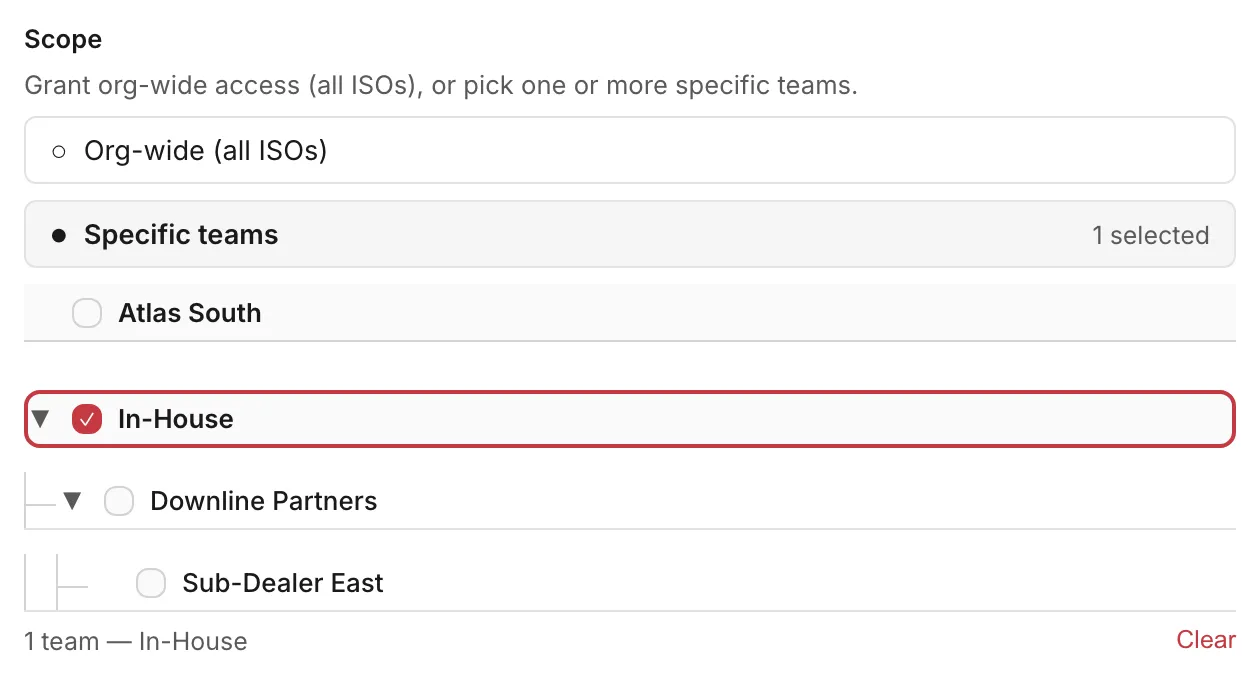
- Under Scope, the agent's own team is already selected. That only says which team they belong to; it does not decide how much of that team they see.Open full size ↗
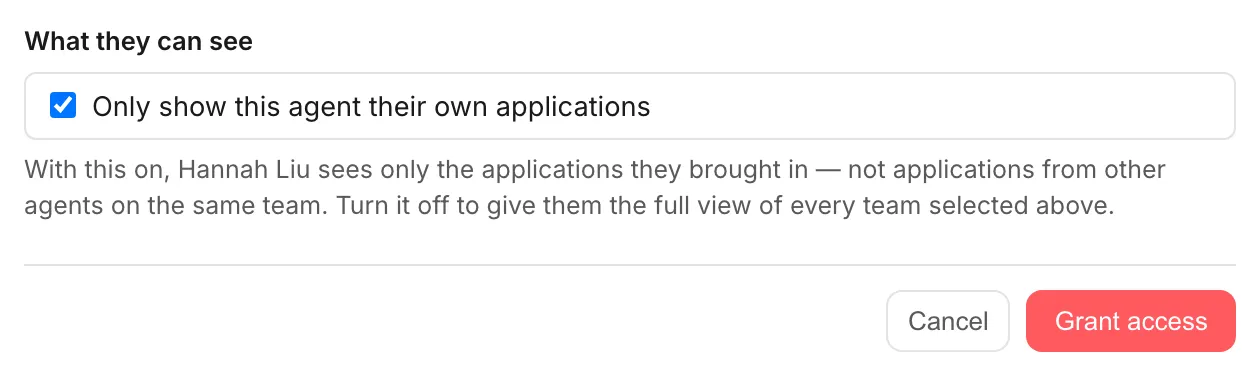
- Under What they can see, keep Only show this agent their own applications ticked: they then see only the merchants they brought in, not the rest of that team's. Untick it only for someone who should see the whole team. Then choose Grant access.Open full size ↗
- If they already have a login, access starts straight away; otherwise they get an email invite and their row reads Invited to portal until they accept. This dialog does not ask about money: someone new to the portal can see merchant revenue and their own residuals by default, and someone who already has a login keeps their current setting.
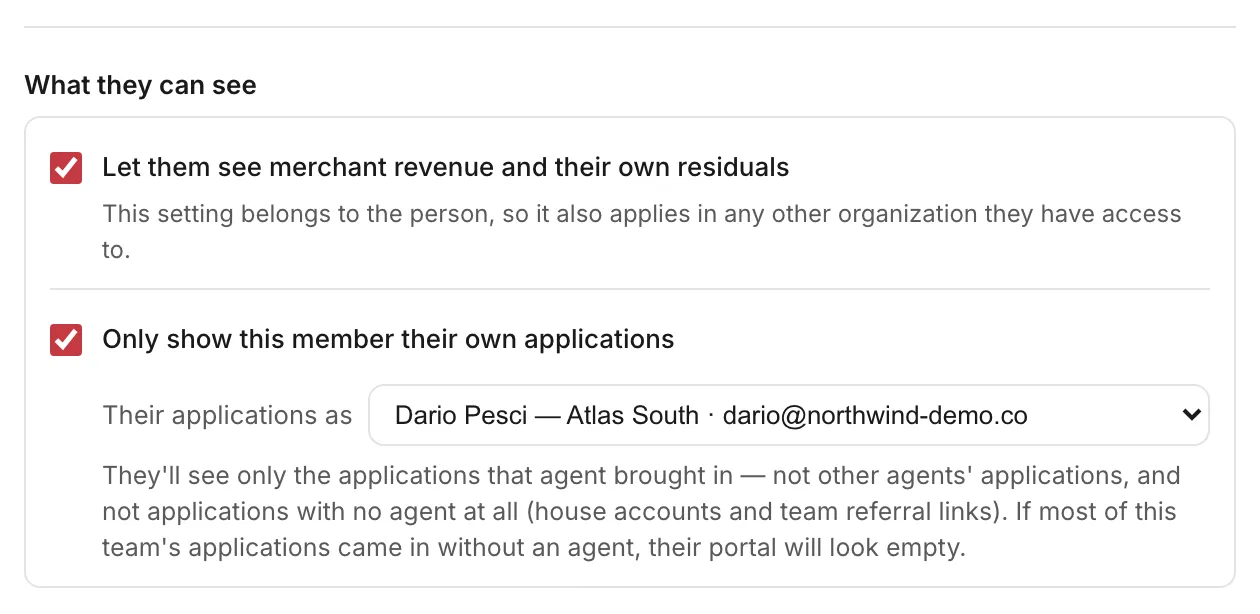
- To change either setting later, an organization-wide admin opens the Team page and chooses Edit on the person's row. Under What they can see, tick or untick Let them see merchant revenue and their own residuals, and Only show this member their own applications, picking the agent under Their applications as.Open full size ↗
Worth knowing
- Someone limited to their own applications sees no application that came in without an agent, such as a house account, so their portal can look empty.
- Someone who has not accepted their invite yet has no Edit on the Team page: choose Re-send invite on their agent row and pick again.
- If the person also has access to another organization, their revenue setting can't be changed here; email the reseller team. You can't change your own settings.
- Bringing on someone new who asked through your agent request link? That is the Bring on an agent guide: you set the same choices when you approve them.
Questions resellers ask about this
How do I give one of my existing agents access to the portal, so they see only their own merchants?
An admin opens ISO groups & Agents, opens the menu on the agent's row and chooses Grant portal access. Pick their role (Viewer is read-only) and the team they belong to, and keep "Only show this agent their own applications" ticked: they then see only the merchants they brought in, not the rest of that team's. The team you pick does not widen that. If they already have a login, access starts straight away; otherwise they get an email invite. Choose Viewer or Editor rather than Admin, because an admin can manage access and could lift the restriction.
Source: OrderOut (official)
How do I change whether a team member sees only their own applications?
An organization-wide admin opens the Team page, chooses Edit on the person's row and, under What they can see, ticks "Only show this member their own applications" and picks the agent under "Their applications as", or unticks it to show every application on their teams. A member limited this way sees no application that came in without an agent, such as a house account. You can't change your own. Someone who has not accepted their invite yet has no Edit: choose Re-send invite on their agent row and pick again.
Source: OrderOut (official)
When I give an agent portal access, can they see merchant revenue and their residuals?
Grant portal access does not ask. Someone new to the portal can see merchant revenue and their own residuals by default, and someone who already has a login keeps their current setting. Once they are on your team, an organization-wide admin can change it from Edit on the Team page, under What they can see. Approving an agent request asks the question up front instead.
Source: OrderOut (official)
How do I change whether a team member can see merchant revenue and their residuals?
An organization-wide admin opens the Team page, chooses Edit on the person's row and ticks or unticks "Let them see merchant revenue and their own residuals" under What they can see. The setting belongs to the person, so if they also have access to another organization it can't be changed there; email the reseller team at reseller@orderout.co. You can't change your own.
Source: OrderOut (official)
Answers from OrderOut Reseller Answer Ledger (2026-10-22.1).
Still stuck? Email reseller@orderout.co.All guides