
Follow a merchant's Square setup
Each merchant's setup page shows where their Square setup stands.
The seven steps at a glance
- Sign up for SquareEmailMerchant
- Connect for agent monitoring & supportEmailMerchant
- Square verifies your businessSquare
- Add a bank accountEmailMerchant
- Turn on card paymentsEmailMerchant
- Take your first card paymentEmailMerchant
- Reach $100 in card salesMerchant
The merchant gets an email each time a step marked Email becomes their next step: step 1 right after they submit, step 2 once Square finds their account, then each of the others.
Steps
- What the merchant receives after submitting
Right after the merchant submits the application, they get one email from your organization. Its subject is "<business>: your next Square step with <your organization>". It carries your name, your logo and your color, never OrderOut's, and it has one button, which opens the merchant's setup page.
The same email goes out again at three moments:
- when Square's merchant id reaches the application (the Activity tab says "Square account found");
- when a step is done and the next one is the merchant's to do: Add a bank account, Turn on card payments or Take your first card payment;
- once as a reminder, with "Reminder:" in front of the subject, when a step the merchant can move has been taking longer than usual. No reminder is sent for Square's verification or for the $100 goal.
The merchant gets it in the language they filled in the form in: English, Spanish or French. The agent on the application is copied, along with your organization's contact email and its "Notify on new submission" contacts, and a reply goes to the agent, or to your organization's contact email when the agent has none. Merchants who applied before the setup page launched do not receive these emails.
When the merchant gets an email
Email When it is sent What the Activity tab says After submitting Right after the merchant submits the application. Setup email sent to owner@example.com Square account found When Square's merchant id reaches the application. Setup email sent to owner@example.com (Square account found) Next step When a step is done and the next one is the merchant's to do: Add a bank account, Turn on card payments or Take your first card payment. Setup email sent to owner@example.com (next step: Add a bank account) Reminder Once per step, when a step the merchant can move reads "Taking longer than usual". Reminder email sent to owner@example.com (Add a bank account) A reminder never goes out within 24 hours of another setup email to the same merchant: it waits.
An email that could not be sent reads:Setup email could not be sent to owner@example.com
- Get the merchant's setup page link
Open the merchant from Merchants. At the top of the Overview tab, the Merchant setup page card has two buttons. Copy link puts the merchant's link on your clipboard and reads Copied for a moment. Open opens the page in a new tab, exactly as the merchant sees it.
Everyone who can see the merchant can use the card, whatever their role, and each use is recorded on the merchant's Activity tab as "Merchant setup page link copied", with the email of the person who did it (an OrderOut staff member shows as a first name, or OrderOut). The card shows only while the application is open: not for a Rejected or Cancelled application, and not before the merchant's OrderOut account exists.
Use it when the merchant cannot find their email, or when you are on a call with them and want them on the page.
Open full size ↗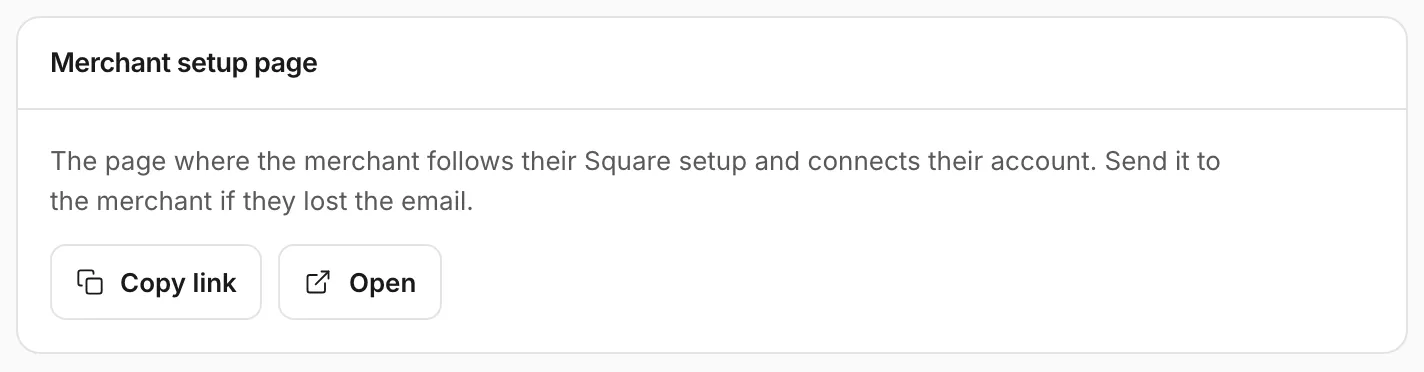
- Read the merchant's seven steps
The setup page lists the merchant's steps under "Your setup". Done steps are ticked. The current step carries a "Why?" note and, unless it has a button instead, a "How?" note. The seven steps are:
- Sign up for Square: done once Square's merchant id is on the application. The merchant presses Create your Square account and signs up with the email they applied with.
- Connect for agent monitoring & support: the merchant presses Connect my account, signs in to Square and chooses their location. This is what lets you follow the steps after it.
- Square verifies your business: Square's review of the new business. Nothing for the merchant to do except watch their email in case Square asks for more information. It can only be marked done once steps 1 and 2 are.
- Add a bank account: in their Square Dashboard, under banking settings.
- Turn on card payments: the merchant finishes whatever Square asks for. If cards stay off, they contact Square Support.
- Take your first card payment: with their Square app or device.
- Reach $100 in card sales: an OrderOut goal that shows the account is up and running. Card sales only.
Steps 4 to 7 are read from Square through the merchant's connection, so they show as still to come until the merchant has connected. The page shows states, never amounts.
- Follow it on the Activity tab
The merchant's Activity tab lists what happened, newest first:
- each setup email: "Setup email sent to <email>", with "(Square account found)" for the one sent when Square's merchant id arrived, "(next step: <step>)" for one sent when a step was done, and "Reminder email sent to <email> (<step>)" for a reminder. An email that could not be sent reads "Setup email could not be sent to <email>";
- "Merchant connected their Square account", the moment they connected;
- a warning when the merchant connected a different Square account than the one on the application (the next steps explain it);
- every time someone copied or opened the setup link: "Merchant setup page link copied", with who did it under it.
If the Activity tab shows the setup email but the merchant says they never got it, ask them to check their spam folder, then send them the link yourself with Copy link.
Open full size ↗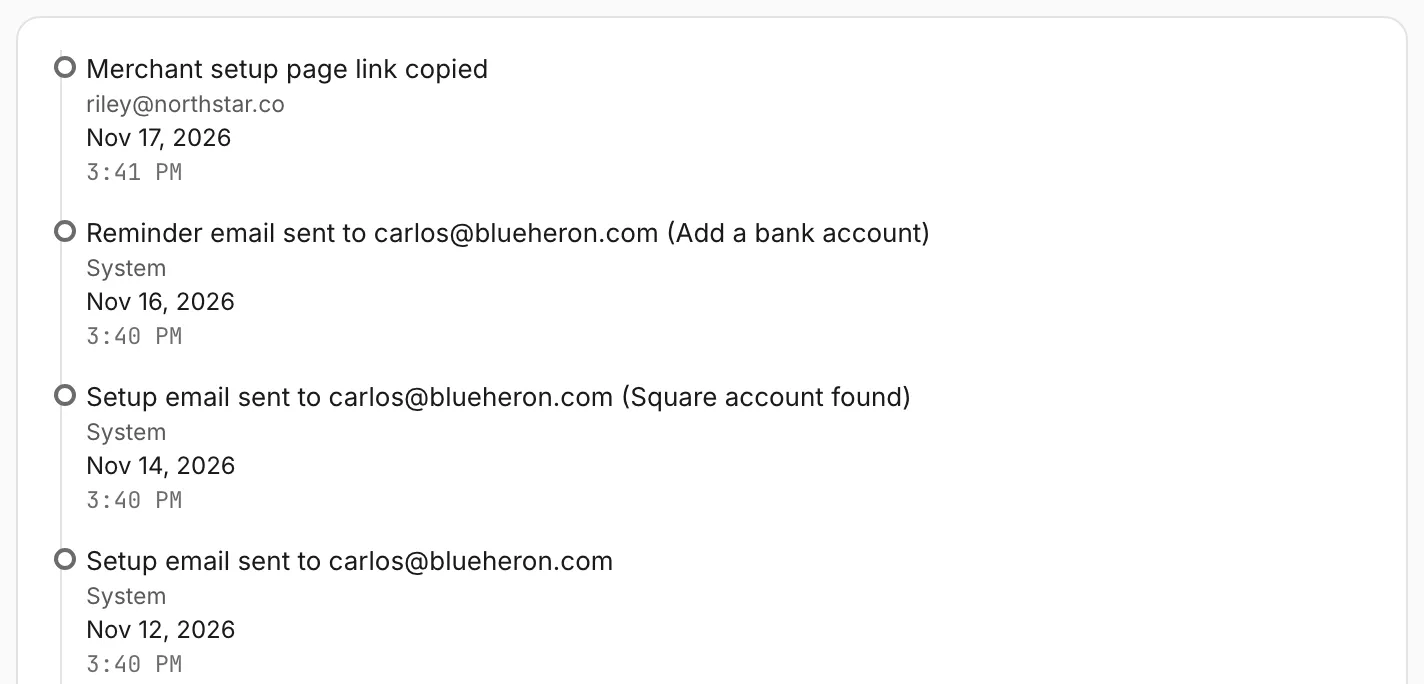
- When a step is taking longer than usual
The setup page marks the current step "Taking longer than usual" after three full days on the same step. Square's verification is marked after two business days, and the $100 goal is never marked.
For a step the merchant can move, they get one reminder email per step. After that it is your turn: call or message the merchant, send them their link again with Copy link, and walk them through the "How?" note for that step.
For Square's verification, only Square moves the step. The merchant should watch their email for anything Square asks for. If card payments stay off after the merchant finished Square's steps, the merchant contacts Square Support.
Who moves next
Step Who moves it Marked “Taking longer than usual” Then Sign up for Square Merchant After 3 full days Reminder email, then you Connect for agent monitoring & support Merchant After 3 full days Reminder email, then you Square verifies your business Square After 2 business days Only Square moves it Add a bank account Merchant After 3 full days Reminder email, then you Turn on card payments Merchant After 3 full days Reminder email, then you Take your first card payment Merchant After 3 full days Reminder email, then you Reach $100 in card sales Merchant Never No reminder After the reminder, it is your turn
- Call or message the merchant.
- Send them their link again with Copy link.
- Walk them through the “How?” note for that step.
For “Square verifies your business”, only Square moves the step: the merchant watches their email for anything Square asks for. If card payments stay off after the merchant finished Square's steps, the merchant contacts Square Support.
- When the merchant connected the wrong Square account
If the merchant connects a different Square account than the one on the application, their setup page tells them: "This isn't the Square account on your application". It shows the account on the application and the account they connected, each with its Square ID, and asks them to connect the right one or ask you which one to use. The step is not marked connected, and the account on the application is never replaced by the one they connected.
Your Activity tab gets a line: "Merchant connected a different Square account: <name> (<id>). The application is set up for <id>."
Ask the merchant to sign out of Square, open their link again and connect the account on their application. If the account on the application is the wrong one, email the OrderOut reseller team (the address is at the bottom of this page) with the merchant's business name and the Square ID that should be on file. Only OrderOut can change the Square ID on an application.
- When the merchant sees Reconnect my account
The Connect step reads Reconnect my account when the latest reading from Square says OrderOut can no longer reach the merchant's account, for example after the merchant removed the app in Square. The page says: "Square no longer shares your account with OrderOut. Reconnect it so your agent can keep monitoring and supporting your setup."
Until they reconnect, the steps after Connect cannot be read and stay where they were. Send the merchant their link with Copy link and ask them to press Reconnect my account, sign in to Square and choose their location.
Checklist
- The merchant received the setup email (it is listed on the Activity tab).
- Steps 1 and 2 are done: the merchant signed up for Square and connected their account.
- No line on the Activity tab says the merchant connected a different Square account.
- No step has read "Taking longer than usual" for days without a call or message from you.
Worth knowing
- The setup page link is the merchant's: anyone holding it can open the page, so send it to the merchant and nobody else.
- For applications submitted since the setup page launched, the setup email replaces the old "we received your application" email. That older email is sent instead when no OrderOut account could be created for the merchant, or when the setup email could not be sent.
- The setup page shows states only, never amounts. For a merchant's processing volume, use the Dashboard or the merchant's Overview tab.
- OrderOut staff can hand out the same link from their side, so a merchant may also receive it from OrderOut support.
Questions resellers ask about this
What does a merchant receive after submitting their application?
After submitting, the merchant gets one email from your organization, with your name, logo and color and one button that opens their Square setup page. The same email goes out again when Square's merchant id reaches the application, when a step is done and the next one is theirs to do (a bank account, card payments or the first card payment), and once as a reminder when a step has been taking longer than usual. It is in the language the merchant filled in the form in: English, Spanish or French. The agent on the application is copied, and a reply goes to the agent, or to your contact email when the agent has none. Merchants who applied before the setup page launched do not get these emails.
Source: OrderOut (official)
What is the merchant setup page?
The merchant setup page is one merchant's page, reached from their setup email or from the Merchant setup page card on their merchant page. It lists seven steps and marks which are done: Sign up for Square, Connect for agent monitoring & support, Square verifies your business, Add a bank account, Turn on card payments, Take your first card payment, and Reach $100 in card sales. The steps after Connect are read from Square through the merchant's connection, so they only move once the merchant has connected. The page shows states, never amounts, and is in English, Spanish or French.
Source: OrderOut (official)
How do I get a merchant's setup page link?
Open the merchant from Merchants. At the top of the Overview tab, the Merchant setup page card has two buttons: Copy link puts the merchant's link on your clipboard, and Open shows you the page as the merchant sees it. Everyone who can see the merchant can use it, whatever their role, and each use is recorded on the merchant's Activity tab with the email of the person who did it (OrderOut staff as a first name). The card shows only while the application is open (not Rejected or Cancelled) and once the merchant's OrderOut account exists. The link is the merchant's: send it to them and nobody else.
Source: OrderOut (official)
What do I do when a merchant's setup step is taking longer than usual?
The setup page marks the current step "Taking longer than usual" after three full days on the same step; Square's verification after two business days; the $100 goal is never marked. For a step the merchant can move, the merchant gets one reminder email per step. After that, call or message the merchant, send them their link again with Copy link, and walk them through the How? note on that step. Only Square moves the verification step; the merchant should watch their email for anything Square asks for. If card payments stay off after the merchant finished Square's steps, the merchant contacts Square Support.
Source: OrderOut (official)
What happens if a merchant connects the wrong Square account?
If the merchant connects a different Square account than the one on the application, their setup page says so and shows both accounts with their Square IDs. The step is not marked connected, and the account on the application is never replaced. The merchant's Activity tab gets a line naming both accounts. Ask the merchant to sign out of Square, open their link again and connect the account on their application. If the account on the application is the wrong one, email reseller@orderout.co with the merchant's business name and the Square ID that should be on file.
Source: OrderOut (official)
What does Reconnect my account mean on the merchant setup page?
The Connect step reads Reconnect my account when OrderOut's latest reading from Square says it can no longer reach the merchant's account, for example after the merchant removed the app in Square. The page tells the merchant that Square no longer shares their account with OrderOut and asks them to reconnect it. Until they do, the steps after Connect cannot be read and stay where they were. Send the merchant their link with Copy link and ask them to press Reconnect my account, sign in to Square and choose their location.
Source: OrderOut (official)
What does the merchant have to do at each step on their setup page?
On the merchant's setup page the current step shows a Why? and a How? note (a step with a button shows the button instead). The How? notes, word for word:
- Sign up for Square: "Press Create your Square account and sign up with the email you applied with."
- Connect for agent monitoring & support: "Press Connect, sign in to Square and choose your location." The button reads Connect my account.
- Square verifies your business: "Nothing to do here. Watch your email in case Square needs more information."
- Add a bank account: "In your Square Dashboard, open the banking settings and link your bank account."
- Turn on card payments: "In your Square Dashboard, finish any steps Square asks for. If cards stay off, contact Square Support."
- Take your first card payment: "Take a card payment with your Square app or device."
- Reach $100 in card sales: "Keep taking card payments as usual."
Only card sales count for the last two steps; cash and gift card sales do not. The notes are in Spanish or French when the merchant filled in the form in that language.
Source: OrderOut (official)
Answers from OrderOut Reseller Answer Ledger (2026-11-17.1).
Still stuck? Email reseller@orderout.co.All guides