
Explain a merchant's residual in the OrderOut Reseller Portal
Choose Explain beside a merchant's residual to see that month broken down.
Steps
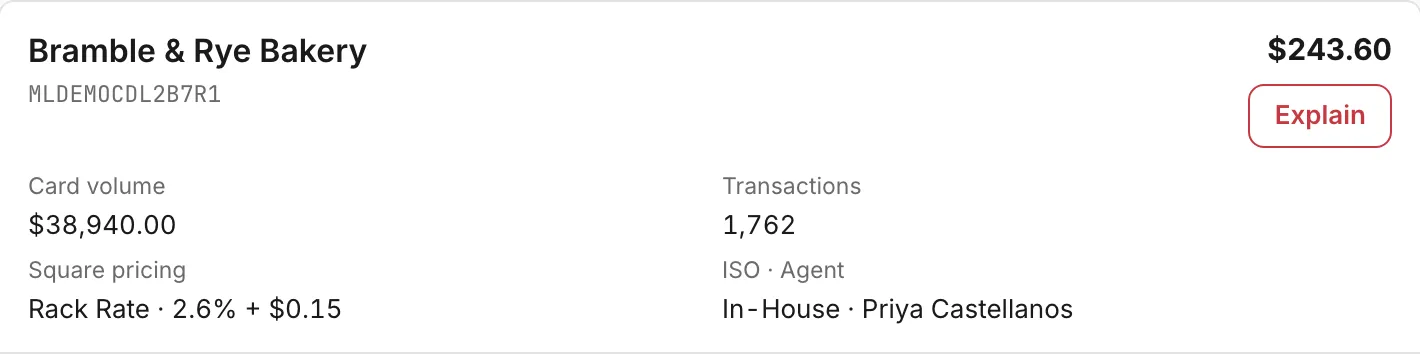
- Open the Residuals page and pick the month. Choose Explain beside the merchant's residual, and the AI assistant opens with that merchant's month.Open full size ↗
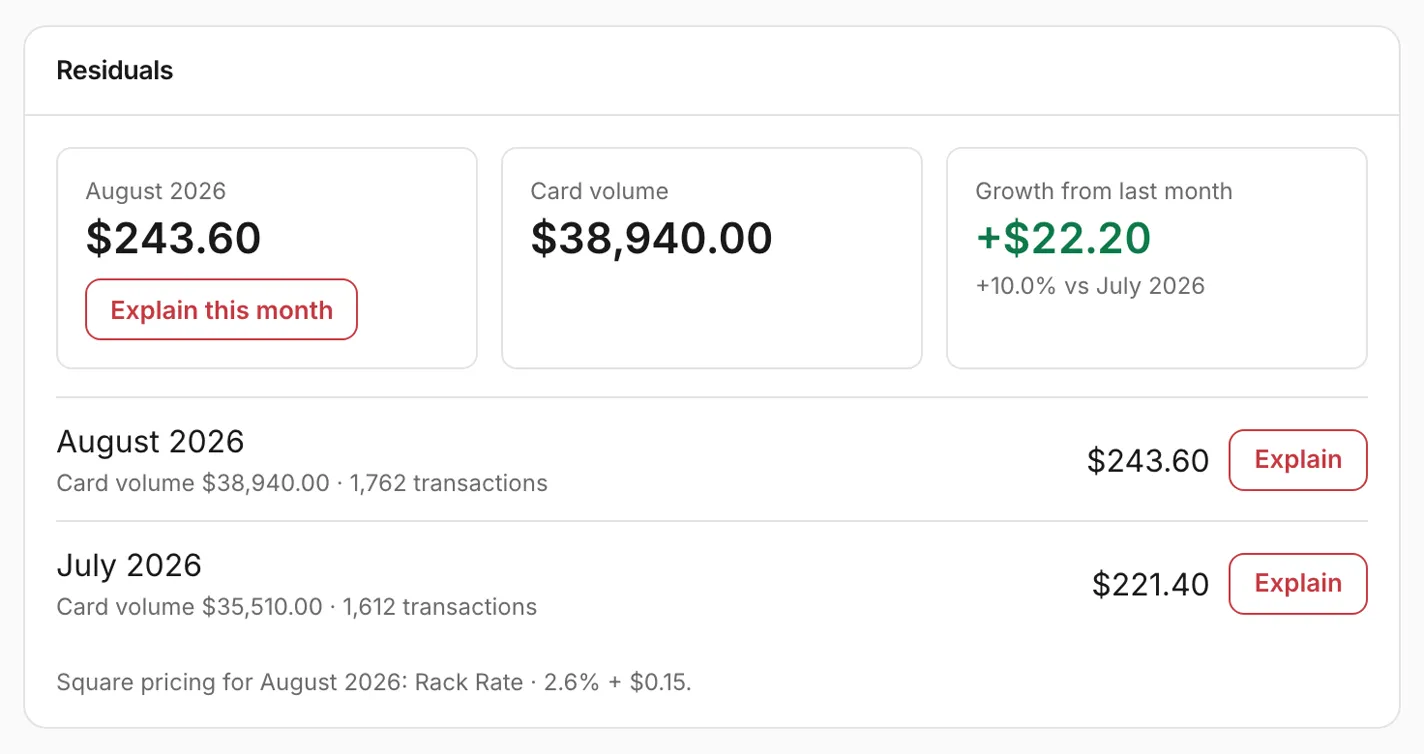
- From a merchant's page instead: on the Residuals card, choose Explain this month for the latest month, or Explain beside any month in Square's report. A month marked Not in report has no Explain.Open full size ↗
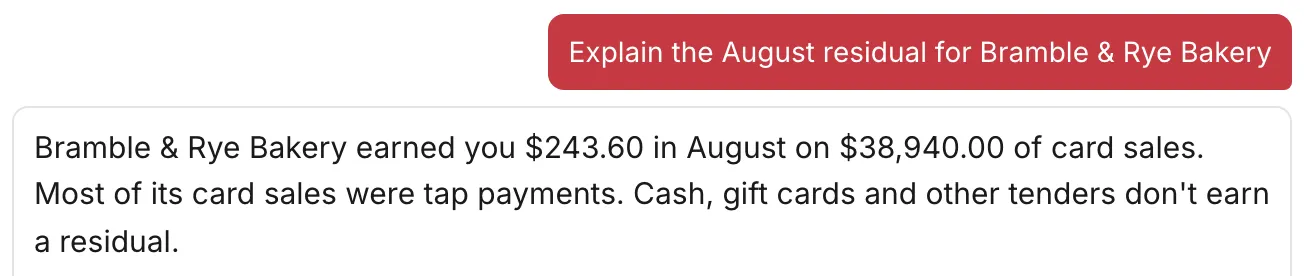
- Or type it in the AI assistant, naming the merchant and the month, for example: Explain the August residual for Bramble & Rye Bakery. If more than one merchant matches, the assistant asks which one you meant.Open full size ↗
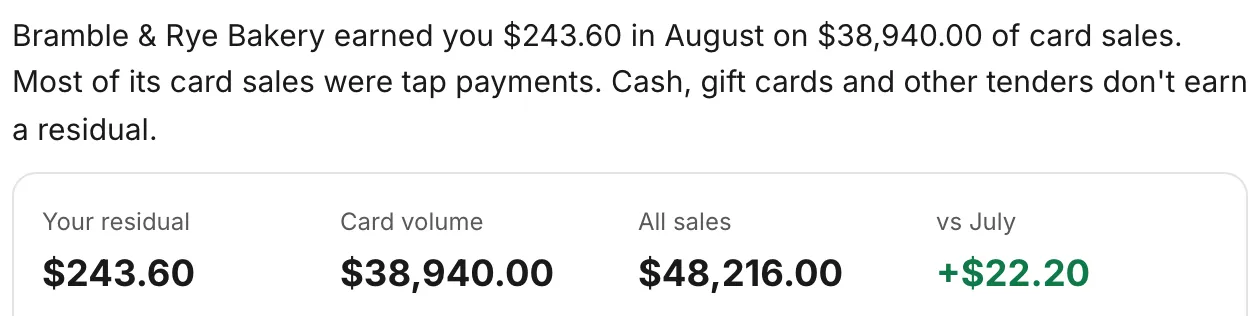
- The card opens with one sentence about the month, then four figures: Your residual, Card volume, All sales, and the change from the month before. Your residual and the card volume are Square's figures from its residual report.Open full size ↗
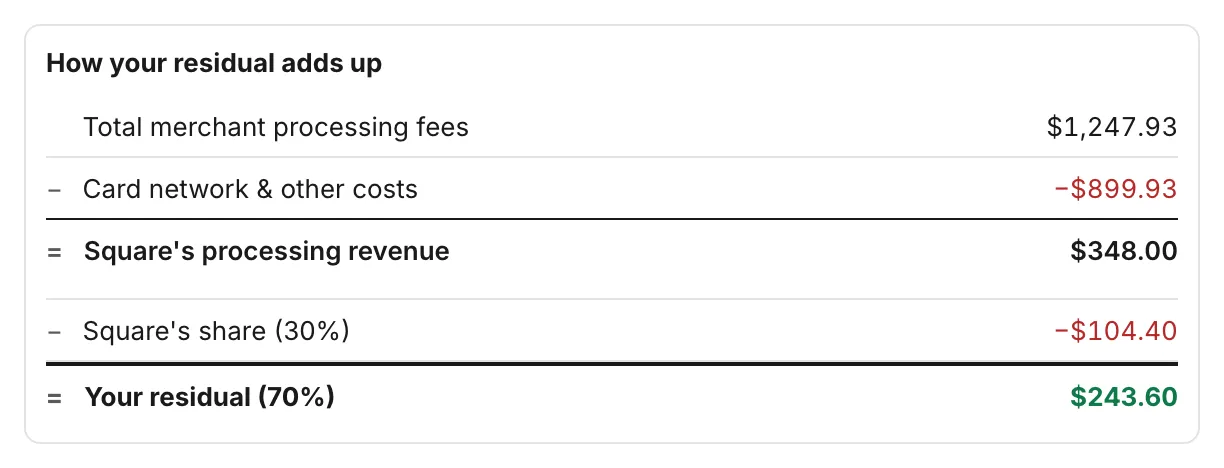
- How your residual adds up starts from the Total merchant processing fees on the merchant's card payments, takes away Card network & other costs to reach Square's processing revenue, then splits that into Square's share and Your residual. Square does not say what the card network & other costs include.Open full size ↗
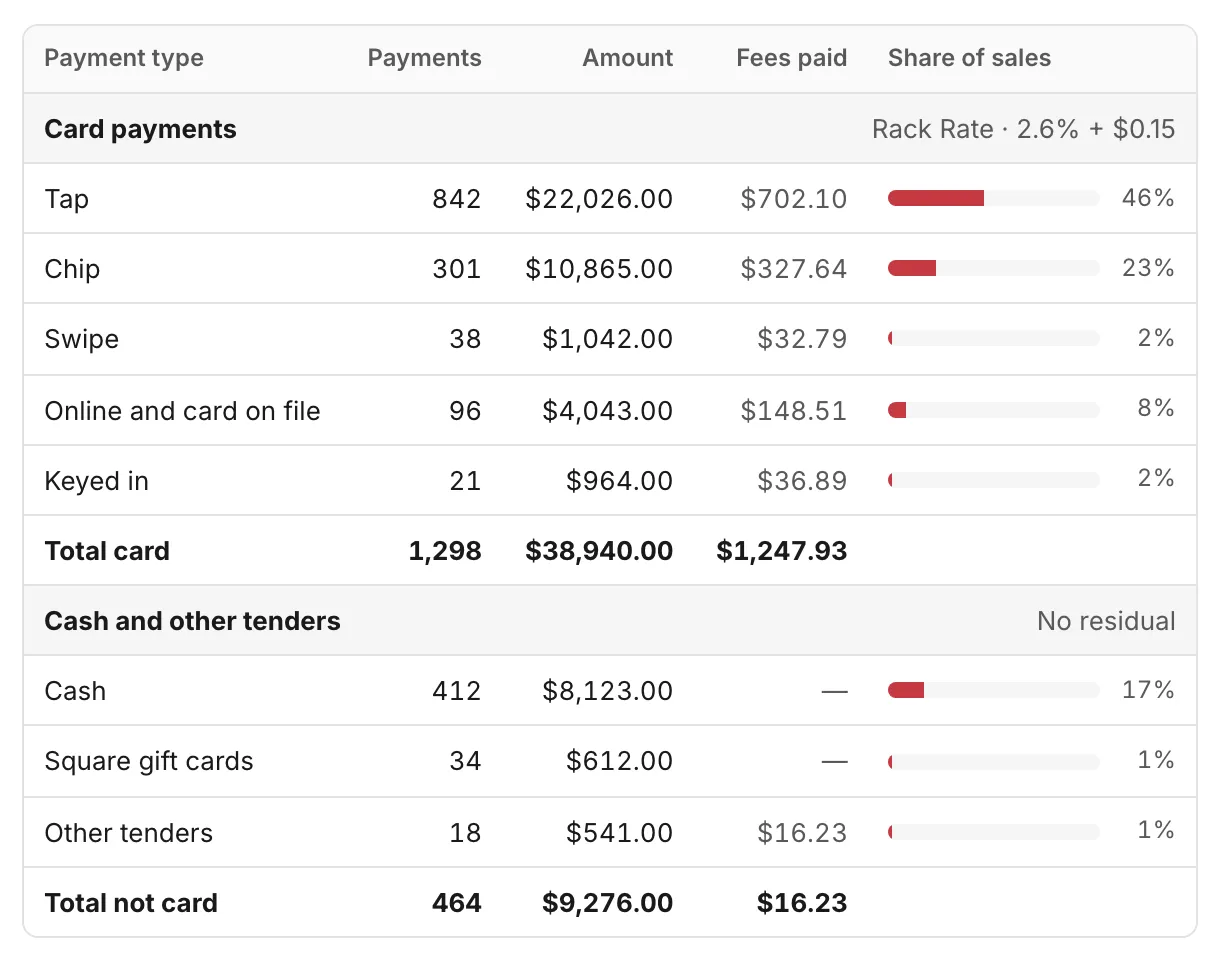
- Below it are the month's payments by type. Card payments are split into Tap, Chip, Swipe, Online and card on file, and Keyed in, with the Fees paid on each. Cash and other tenders are marked No residual. Share of sales shows each row's part of all sales.Open full size ↗
- Ask follow-up questions about the card in the same chat, such as what changed from the month before.
Worth knowing
- Explain covers the same merchants your Residuals page lists. An ISO group admin, or a member who sees only their own agents' merchants, can explain those merchants' residuals.
- A month marked Not in report means Square did not list the merchant that month; it is not a zero residual.
- If the card says OrderOut has not collected the month's payments yet, the payments table for that month is not ready; your residual and the card volume still show.
- Without permission to see merchant revenue and residuals, the Residuals page, a merchant's Residuals card and the card stay hidden. An organization-wide admin can turn it on from the Team page: Edit on your row, then Let them see merchant revenue and their own residuals under What they can see. Nobody can change their own.
- If a figure looks wrong, email the OrderOut reseller team.
Questions resellers ask about this
Can you explain the residual for one of my merchants last month?
Yes: choose Explain beside the merchant's residual on the Residuals page, or Explain this month on the Residuals card of the merchant's page, and the portal AI assistant shows that month as a card: your residual, the card volume, all sales, the change from the month before, the month's payments by type with the fees paid, and how your residual adds up. You can also type the request in the assistant, naming the merchant and the month, and ask follow-up questions about the card. The merchant's page also lists every month OrderOut has loaded from Square's report on its Residuals card, with that month's residual, the card volume, the number of transactions, the change from the month before and the merchant's Square pricing for that month. The Residuals page shows the same figures for all your merchants, with a CSV download. Both need permission to see merchant revenue and residuals.
How it arises: Square pays OrderOut 70% of the payment-processing revenue Square earns on the merchant's card volume, and OrderOut passes 100% of that to you. So a month's residual follows that month's card volume and the merchant's Square pricing. Cash sales earn nothing, and Square does not publish how it works out its own processing revenue, so the portal shows Square's figure as reported rather than recalculating it. A month marked "Not in report" means Square did not list the merchant that month; it is not a residual of $0. If a month looks wrong, email reseller@orderout.co.
Source: OrderOut (official)
How does a residual add up? It is 70% of what?
Your residual is 70% of what Square earns on the merchant's card payments, and OrderOut passes all of it to you. Square keeps the other 30%. The simple math:
- Total merchant processing fees (the card fees the merchant paid)
- minus card network & other costs (Visa, Mastercard, Amex and the like)
- equals Square's processing revenue
- minus Square's share (30%)
- equals your residual (70%)
Square does not say what the card network & other costs include. If a month looks wrong, email reseller@orderout.co.
Source: OrderOut (official)
Why is a merchant's residual low, or lower than last month?
A residual follows the payment-processing revenue Square earns on the merchant's card volume (Square pays OrderOut 70% of it and OrderOut passes 100% to you), so it moves mainly with that month's card volume and the merchant's Square pricing. A slower month, more of the merchant's sales taken in cash, or a change of pricing all lower it. To see one month in detail, choose Explain beside the merchant's residual: the portal AI assistant shows that month's payments by type, the fees paid and the change from the month before. Compare months on the Residuals card of the merchant's page: it shows each month's card volume and transactions next to the residual, and the change from the month before. The transaction count is OrderOut's own count and includes cash payments, so it can rise while card volume falls. A month marked "Not in report" means Square did not list the merchant that month, not a residual of $0. If a figure still looks wrong, email reseller@orderout.co.
Source: OrderOut (official)
What does Square give to OrderOut?
Square pays OrderOut 70% of the payment-processing revenue Square earns on your referred merchants' card volume, and OrderOut passes 100% of that straight through to you — OrderOut takes no cut. You then set your own sub-agent splits on top of it. This is earned on card payment-processing only — not hardware, not software or subscription fees, and not on boarding a merchant itself.
Source: OrderOut (official)
How do I change whether a team member can see merchant revenue and their residuals?
An organization-wide admin opens the Team page, chooses Edit on the person's row and ticks or unticks "Let them see merchant revenue and their own residuals" under What they can see. The setting belongs to the person, so if they also have access to another organization it can't be changed there; email the reseller team at reseller@orderout.co. You can't change your own.
Source: OrderOut (official)
Answers from OrderOut Reseller Answer Ledger (2026-10-29.1).
Still stuck? Email reseller@orderout.co.All guides