
Create an onboarding link in the OrderOut Reseller Portal
You submit merchants by sending them your OrderOut Reseller Portal onboarding link.
Steps
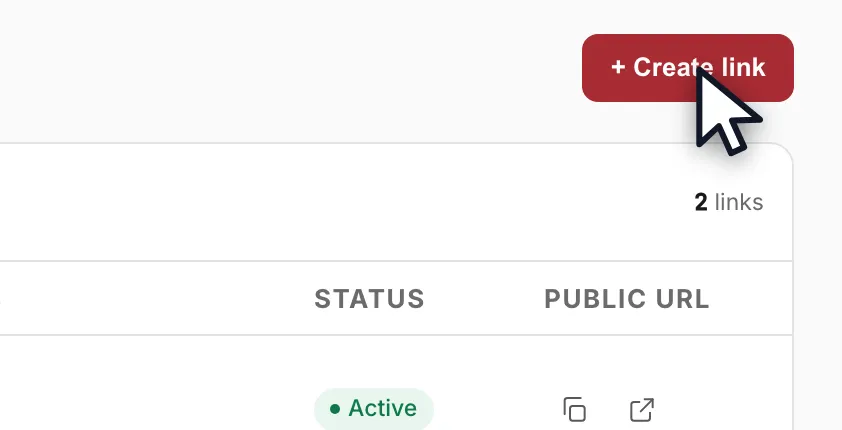
- Open Onboarding Links and click + Create link in the top right. You need the ADMIN or EDITOR role — a VIEWER does not see the button.Open full size ↗
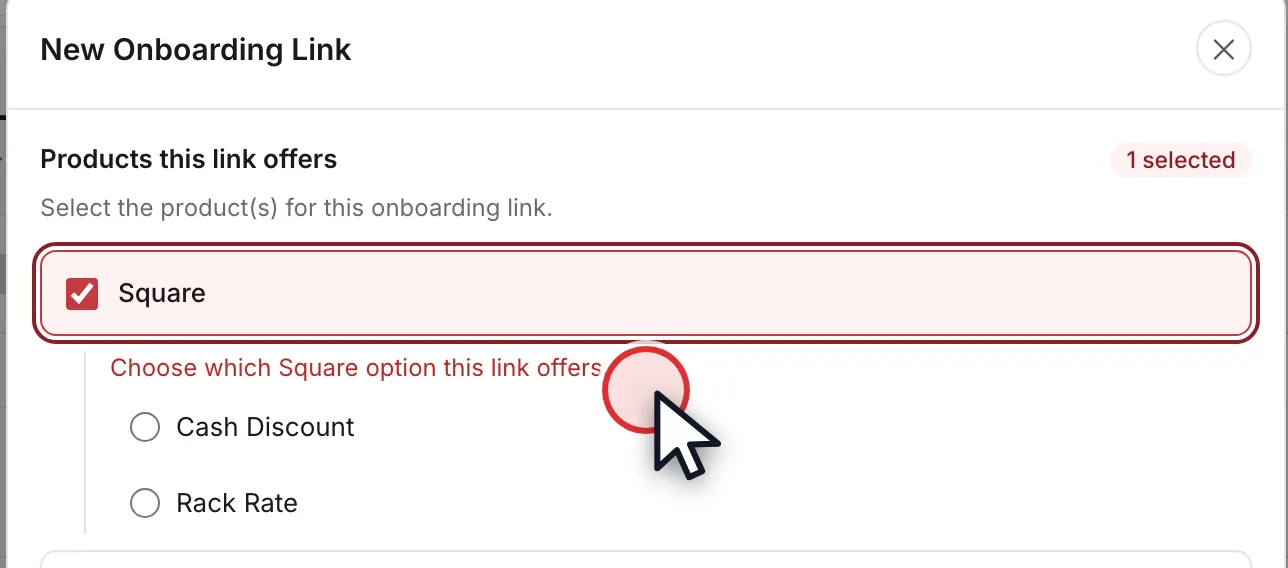
- In the New Onboarding Link dialog, under Products this link offers, tick Square. A pricing choice appears underneath it.Open full size ↗
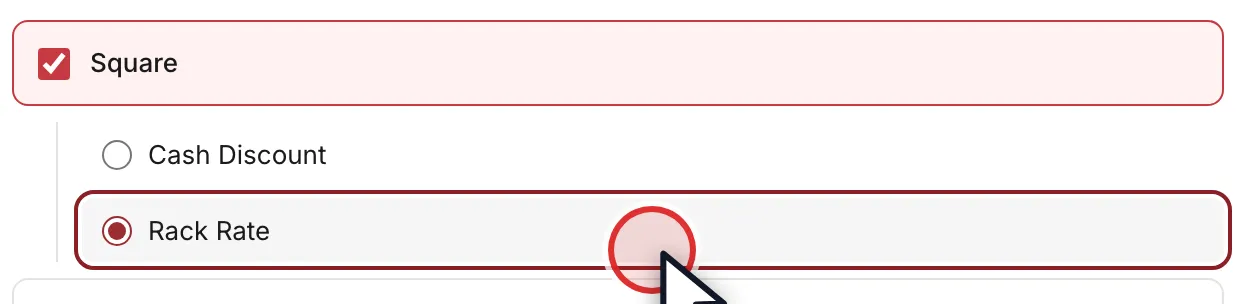
- Choose the pricing. Rack Rate is 2.6% plus 15 cents per card transaction; the option labeled 4% Flat Rate (Cash Discount) — the screenshot below still shows its earlier label, Cash Discount — is a flat 4% card processing rate the merchant pays, not a charge added to their customers. Those two are the whole standard menu — anything else is a custom rate that Square has to set up for that specific merchant, so bring it to the OrderOut reseller team before you send a standard link.Open full size ↗
- Give the link a name. It is an internal label — merchants never see it. Naming it after the pricing and the agent keeps a growing list readable.Open full size ↗

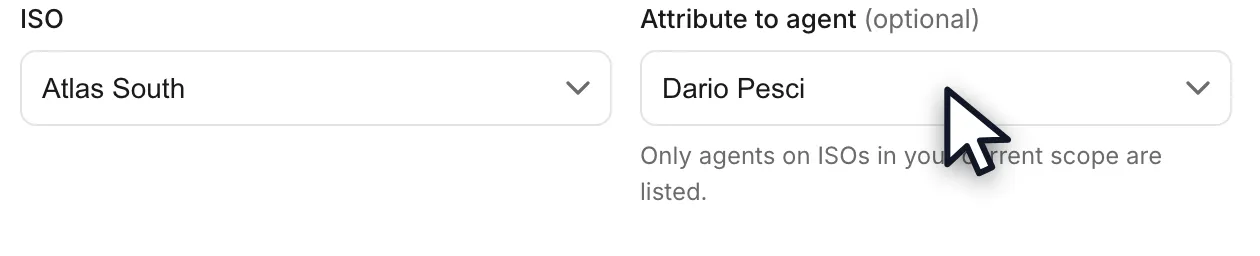
- Check the ISO, then set Attribute to agent. Every merchant who signs up through this link, and the residuals those merchants earn, is credited to that agent automatically — so give each agent their own link even at the same pricing. Leave the agent unset for house accounts. Then click Create link.Open full size ↗
- The new link appears in the list as Active, carrying its agent and its pricing. Copy its public address from the PUBLIC URL column and send that to your merchant. You reuse the same link for every merchant on that pricing; links are archived, never deleted.Open full size ↗

- Before you send it, tell the merchant what to expect: Square will email them within a few hours asking some of the same questions, including the owner's SSN, which this link deliberately does not collect. That email is Square's own verification of the account it is opening — it is the real setup step and it cannot be skipped. A merchant who is expecting it stops treating it as an error.
- After the merchant submits your link, the handoff runs: OrderOut creates the Square account with your attribution, Square emails the merchant to complete setup, the merchant buys their own hardware from Square at published prices and links their own deposit bank account inside their Square Dashboard, and Square Support handles implementation and activation. There is no fulfilment desk between you and Square.
Worth knowing
- You do not need a link per merchant. One link per pricing program, reused, is the pattern — the second reason to create another link at the same pricing is per agent, which is what attributes their merchants and their residuals to them.
- Picked the wrong pricing? Nothing you have just done is permanent. Clicking a link's row reopens it, and the products, the pricing, the name, the ISO, the agent and the description are all editable with the ADMIN or EDITOR role. Merchants who already applied through it are unaffected: their products and pricing are frozen onto their application at the moment they submit, so an edit only changes what the NEXT merchant is offered.
- Archiving is how you retire a link, and it is the ADMIN-only action in the footer of that same dialog. An archived link stops offering the application — anyone still holding the old address gets a neutral unavailable page that gives nothing away — and Reactivate puts it back. Nothing is deleted, so the merchants it already brought in keep their attribution.
- You can see your own link exactly as a merchant does. Beside the copy icon in the PUBLIC URL column is an open-in-new-tab icon, which opens the link itself, carrying your branding.
- One link can offer more than one product. The products list is multi-select and counts what you have ticked beside its heading; this guide ticks Square alone because that is the common case.
- The option labeled 4% Flat Rate (Cash Discount) sets one thing: the merchant's card processing rate, at a flat 4%. It does not switch on a cash discount — that is a manual discount button the merchant sets up in their own Square Dashboard afterwards. See the guide on offering the 4% Flat Rate.
- Changing the ISO clears the products you already ticked, because the catalog is filtered to what that ISO is assigned. If you need a different ISO, choose it first.
- A link cannot be created without at least one product. If the products list is empty for an ISO, an OrderOut admin has to enable them before a link can exist.
In the video
- 0:00Open the dialog
- 0:15Pick the product and the pricing
- 0:37Name it and attribute it
- 0:55Send it, and what happens next
Questions resellers ask about this
What are the next steps after my account is created — how do I start submitting merchants?
Once approved you get an account-created email — use the sign-up link under the CONTINUE button and register with the address you applied with. Then sign in and execute the Master Agreement and the Square Product Schedule, set up your ISO and/or agents, and on the portal's Links page create an onboarding link — choosing Square, its pricing, and the agent it attributes to so residuals calculate correctly. Share that link to start submitting merchants.
Source: OrderOut (official)
Do I need to create a new onboarding link for every merchant?
No. You use one link per pricing program, and reuse it for every merchant.
The link is what fixes the card-processing program, so choose the pricing before you send it: Square's Rack Rate at 2.6% + $0.15, or the 4% Flat Rate. Most resellers keep one of each and pick the right one per deal.
Where you do want more than one link of the same pricing is per agent — a link per agent is what attributes their merchants, and their residuals, to them automatically.
Source: OrderOut (official)
The onboarding link only offers two Square pricing choices — is that all there is?
Yes — two is the full standard menu, not a subset.
- Rack Rate — 2.6% + $0.15 per card transaction.
- 4% Flat Rate — labeled "Cash Discount" on the link. It is a flat 4% card processing rate the merchant pays. It is not a fee on the customer and not an automatic cash discount: a merchant who wants cash customers to pay less sets up a manual Cash Discount button in their own Square Dashboard, or asks about Square's surcharge, which is capped at 3%.
To present both programs, create a second link with the other pricing for the same agent.
Anything else is a custom rate and is not self-serve — Square has to set up a specific contract with that merchant, so bring the opportunity to the OrderOut reseller team before sending a standard link.
Source: OrderOut (official)
My merchant gets an email from Square asking the same questions again after using my onboarding link — can that be avoided?
No — and it is not a duplicate of your application. The onboarding link creates the Square account with your attribution; the email is Square's own verification, which Square has to do itself for the account it is opening. It cannot be bypassed, and some overlap in the questions is unavoidable.
- Timing — it typically arrives a few hours after the application; normal, not a sign something went wrong.
- What to do — set the expectation up front: tell the merchant a Square email is coming a few hours later, and that it is the step that finalizes their activation.
Source: OrderOut (official)
What should I tell a merchant to expect before I send them the onboarding link?
The steps do not change from merchant to merchant; what varies is how much documentation Square's verification asks for, which depends on the entity and the underwriting — Square's call, not ours.
Four things to tell them:
- A Square email arrives within a few hours — it is the real account setup, not a duplicate of the form they just filled in.
- Square will ask for identity information our link deliberately does not collect, including the owner's SSN.
- They link their own deposit bank account inside their Square Dashboard afterwards.
- Hardware is bought from Square directly, at published prices.
A merchant who knows the second email is coming stops treating it as an error.
Source: OrderOut (official)
What is the complete workflow from 'the merchant is ready' through to a live merchant?
The handoff:
- You — win the merchant and establish their needs.
- Merchant — submits your onboarding link.
- OrderOut — creates the Square account with your attribution.
- Square — emails the merchant to complete setup.
- Merchant — buys their own hardware from Square.
- Square Support — handles implementation and activation.
There is no fulfillment desk between you and Square. OrderOut is the reseller platform for Square account creation, not an implementation, ordering or fulfillment operation, and nobody at OrderOut or Square places a hardware order for the merchant.
Source: OrderOut (official)
How do I add agents or sub-ISOs to the portal and attribute deals to them (or to the house)?
Add agents from the ISOs page in the reseller portal: click the Add agent button in the top right, or open the three-dots menu on an ISO row (for example your In-House ISO) and choose Add agent. Then create a unique onboarding link for each agent from the Links page — choose the Square pricing for the link and select that agent. Merchants who sign up through an agent's link, and the corresponding residuals, are attributed to that agent automatically. Deals you want to keep as house accounts can be attributed to the ISO itself.
Source: OrderOut (official)
Full transcript1:12
0:00Open the dialog
You submit merchants by sending them your OrderOut Reseller Portal onboarding link.
You'll need admin or editor access, and we're starting on the Onboarding Links page.
Click Create link, in the top right.
0:15Pick the product and the pricing
Products come first. Tick Square, and its two pricing options appear underneath.
Rack Rate is 2.6% plus 15 cents a card transaction. Cash Discount is the 4% flat rate.
The link fixes that pricing, so keep one link per program and reuse it. You do not make a link per merchant.
0:37Name it and attribute it
Name the link. That name is internal, and merchants never see it.
Check the ISO, then attribute the link to one agent. Their merchants, and the residuals those merchants earn, credit to that agent automatically.
0:55Send it, and what happens next
Click Create link. The new link is in the list, Active, and you copy its public address from the last column.
Your merchant fills it in, OrderOut opens the Square account under your attribution, and Square emails them within hours to finish setup.
Answers on this page come from the OrderOut reseller answer ledger (2026-10-09.1). Still stuck? Email reseller@orderout.co.·All guides