
Bring on an agent in the OrderOut Reseller Portal
Share your agent request link, then approve each request.
Steps
- Open the Team page. Your agent request link is at the top: copy it and send it to anyone you want selling for you, by email, text or a message.Open full size ↗
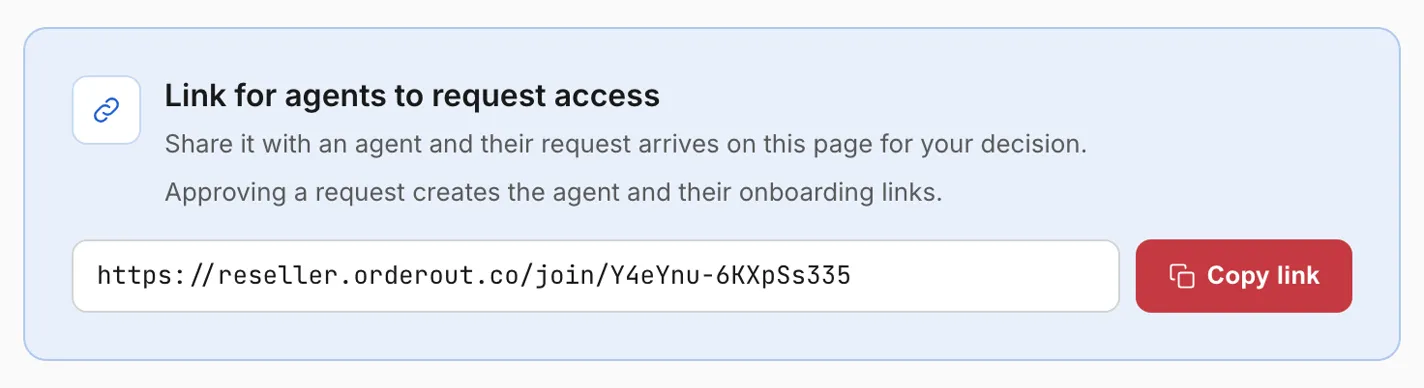
- The person opens the link and fills in their name, their email and, if they like, a phone number. They do not pick an ISO group or any permissions; you decide those.
- Their request appears in your requests list on the Team page, and every organization-wide admin gets an email about it. Open it to see who is asking and whether they have asked before.Open full size ↗
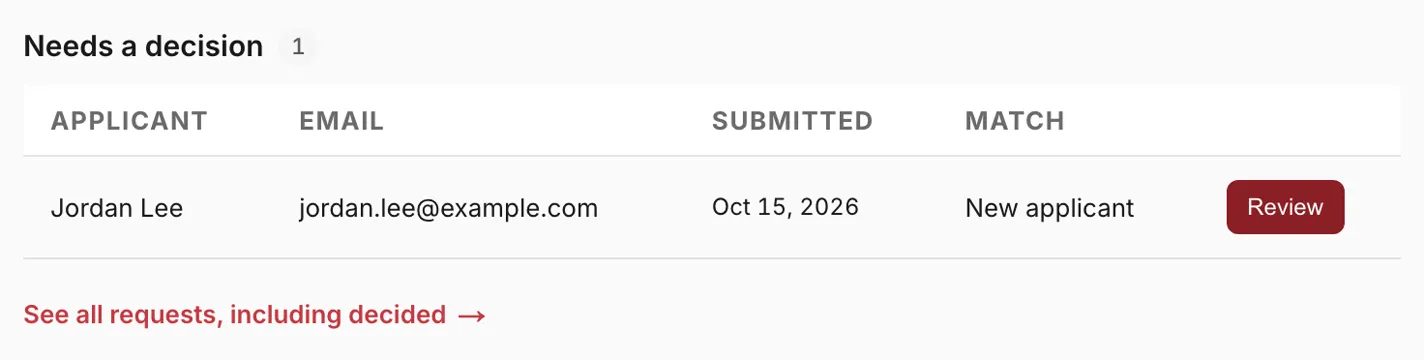
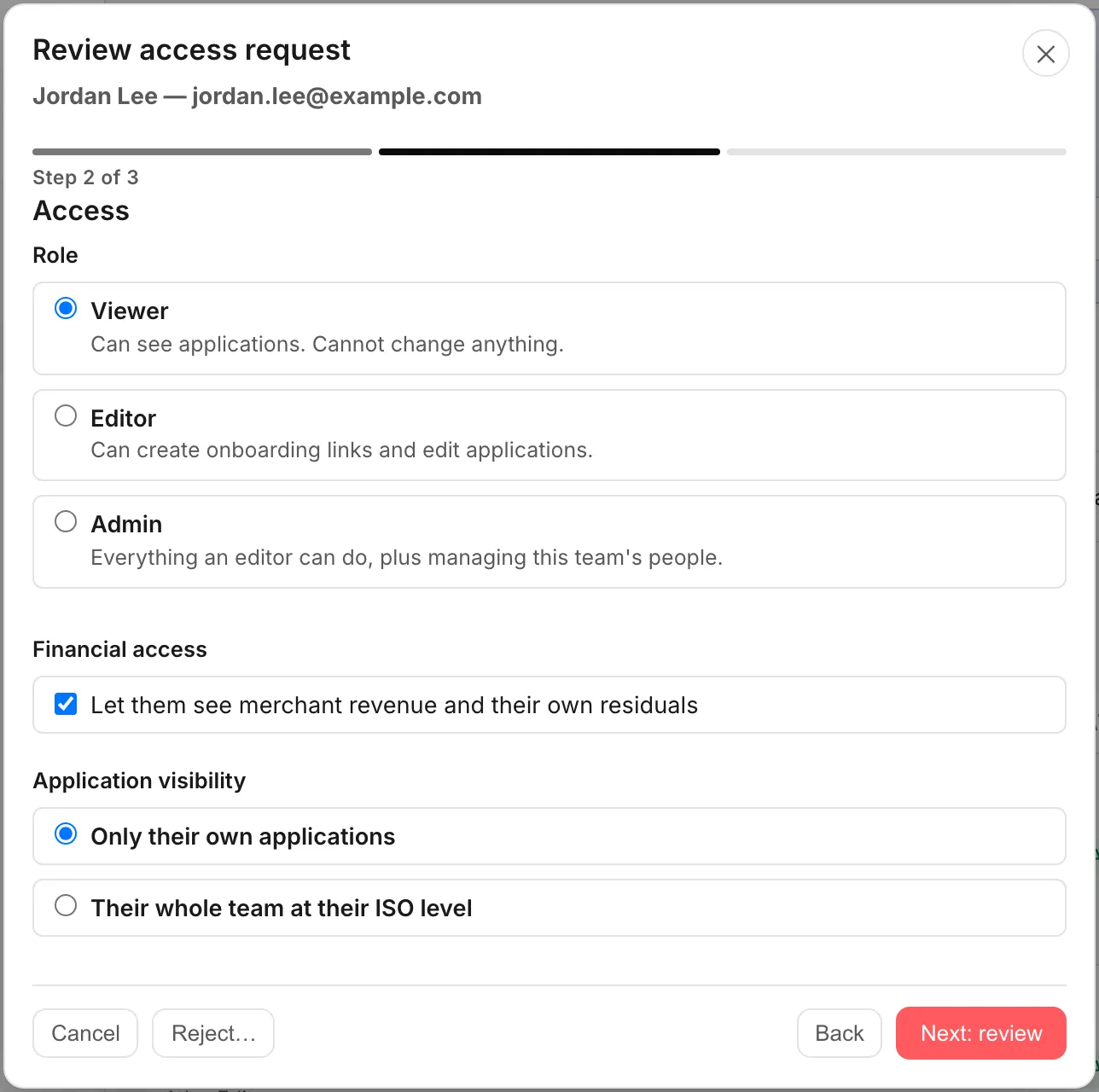
- Choose the ISO group the agent sits under, their portal role, whether they can see merchant revenue and their own residuals, and whether they see only their own merchants. Then approve, or reject with a reason.Open full size ↗
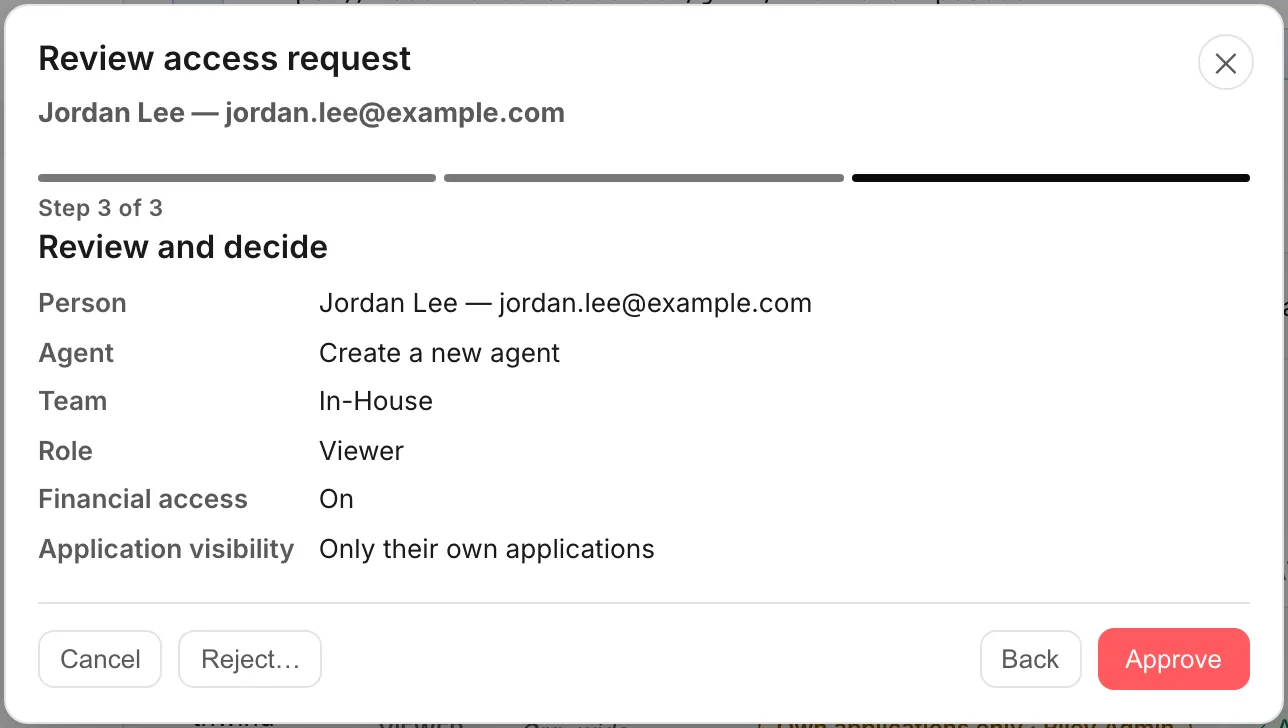
- Approving creates the agent, gives them their own login and creates their onboarding links, one for each Square program your organization offers. Merchants who sign up through those links, and the residuals, are attributed to that agent automatically.Open full size ↗
Worth knowing
- Your own onboarding links are already on the Onboarding Links page, one for each Square program your organization offers.
- For any other link, or for an agent who should not have a login, email the reseller team.
Questions resellers ask about this
Can I send prospective agents a link to request to join my organization?
Yes. Organization-wide admins find your agent request link on the portal's Team page.
- What the applicant fills in — name, email and, optionally, a phone number. They do not pick an ISO or any permissions.
- Who decides — an organization-wide admin reviews each request and approves or rejects it.
- What you set on approval — the ISO the agent sits under, their portal role (Viewer by default), whether they can see financial figures, and whether they see only their own applications or their whole ISO's.
- What approval does — creates the agent, invites them to the portal and creates their onboarding links, so they can start sharing straight away.
Source: OrderOut (official)
How do I create another onboarding link?
Onboarding links are created for you: yours are already on the Onboarding Links page, one for each Square program your organization offers, and a new agent gets theirs when an organization-wide admin approves their request. For any other link, such as a replacement or a link with no agent, email the reseller team at reseller@orderout.co.
Source: OrderOut (official)
Can I add an agent who refers deals but never logs in to the portal?
Agents join through your agent request link, and approving a request also invites them to the portal. For an agent who should not have a login, email the reseller team at reseller@orderout.co.
Source: OrderOut (official)
Answers from OrderOut Reseller Answer Ledger (2026-10-13.1).
Still stuck? Email reseller@orderout.co.All guides